

Email Whitelist Instructions
To make sure our email messages get through to you, please "whitelist" our email addresses. "Whitelisting" is typically accomplished by adding us to your "trusted list" of senders, contacts, or to your email address book.
Whitelist Instructions:
AOL
Yahoo!
Gmail
Windows LiveMail/ Outlook (online)
Outlook (PC 2003 and up)
AppleMail
Thunderbird
Android
iPhone
Here are the email address we send from:
Tom McClellan<tom@mcoscillator.com>
Daily Edition<dailyedition@mcoscillator.com>
McClellan Market Report<marketreport@mcoscillator.com>
McClellan Financial Publications<subscriptions@mcoscillator.com>
AOL
1) Unblock images from tom@mcoscillator.com
- Open a Report email
- Click "Do not block this sender" (if needed)

2) Add "tom@mcoscillator.com" to your contacts.
- Click on the Sender's name
- Add contact

3) Add the report sending lists to contacts
- Click on Contacts
- Add contact
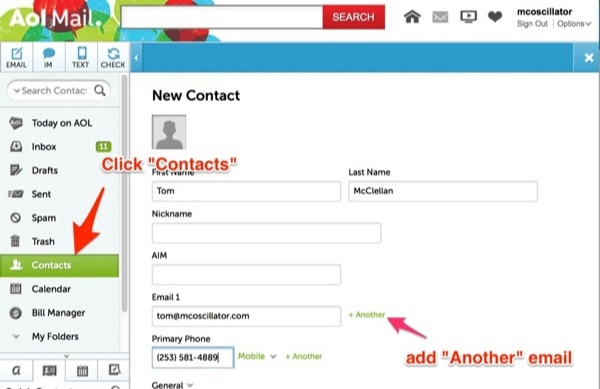
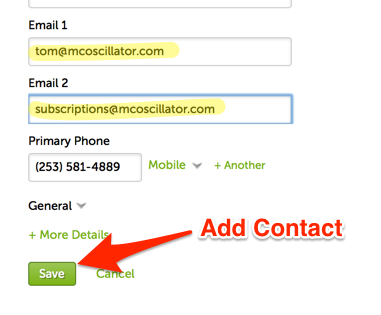
- Click "+Another", add subscriptions@mcoscillator.com (billing)
- Click "+Another", add dailyedition@mcoscillator.com (delivery)
- Click "+Another", add marketreport@mcoscillator.com (delivery)
- Click "[Save] "
DONE! Back to top
Yahoo!
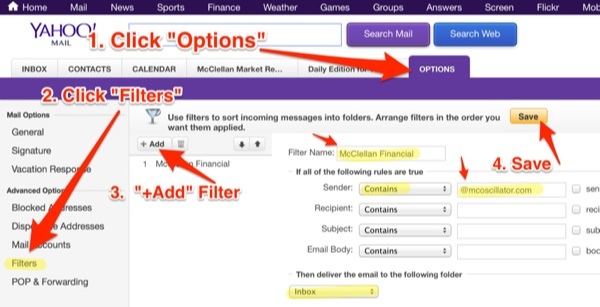
1) Add a "filter" to ensure @mcoscillator.com emails are delivered to your INBOX.
1 - Options tab
2 - Filters menue item
3 - Add Filter buttton tab
4 - Save
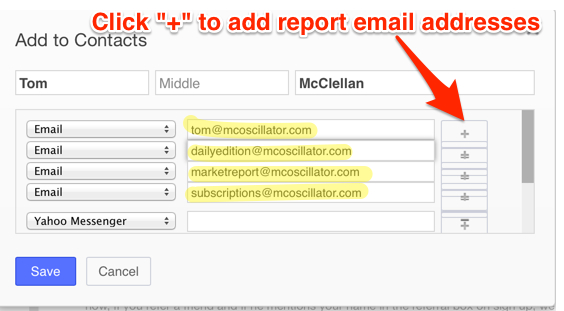
2) Add tom@mcoscillator.com as contact.
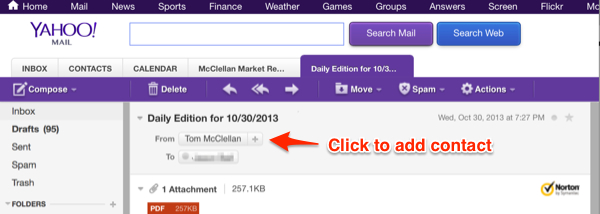
- Use the "+" buttton to add all the report sending address
- dailyedition@mcoscillator.com
- marketreport@mcoscillator.com
DONE! Back to top
Gmail
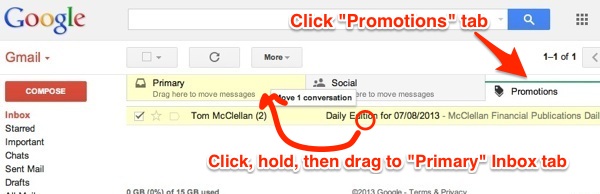
1) Check the "Promotions" tab, if report emails are not being delivered to your Gmail InBox.
- If you find any market reports under the "Promotions" tab: click & hold the message, and drag the message to the Inbox tab.
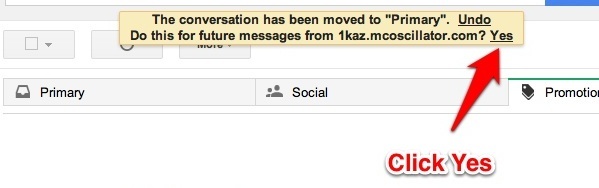
- Gmail will ask if you want this done in the Future. (Click Yes).
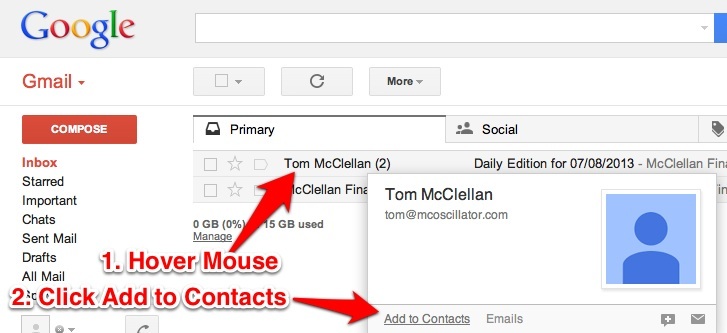
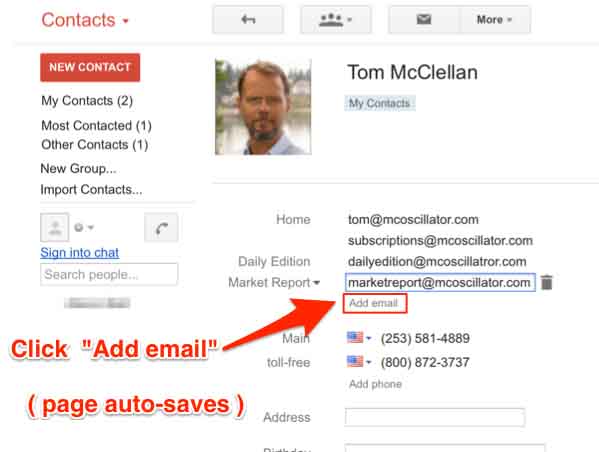
2) Add our email addresses to "Contacts"
- Hover mouse over "sender" name>
- Click "Add to Contacts"
Add these addresses
- dailyedition@mcoscillator.com (Report list address)
- marketreport@mcoscillator.com (Report list address)
- subscriptions@mcoscillator.com (Receipts & subscription notices)
DONE! Back to top
Windows LiveMail / Outlook (Online)
Add our emails' to Safe Senders
- Click on the Gear Icon
- Click on "More options"
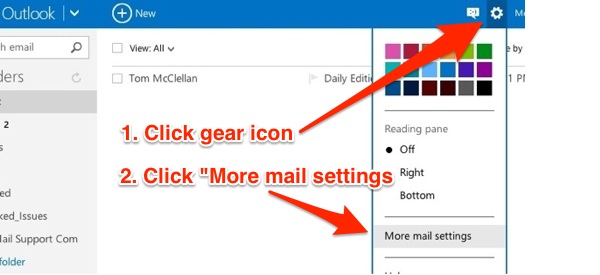
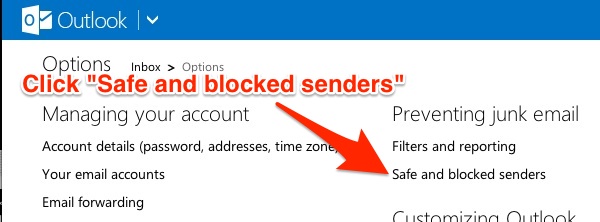
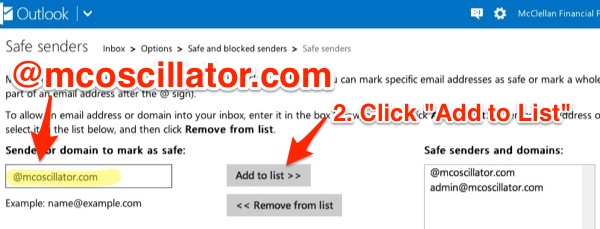
- Under "Preventing Junk Mail" - Click on "Safe and Blocked Senders"
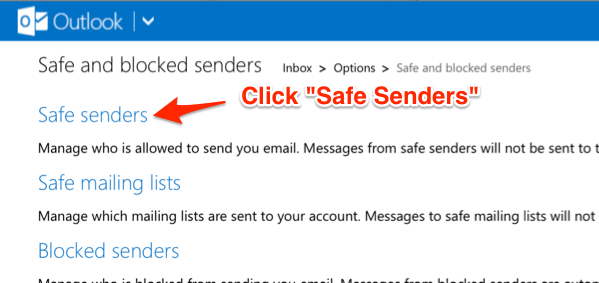
-Click on "Safe Senders"
- In the text box type "@mcoscillator.com" (this will add all the @mcoscilator.com emai addresses)
- Click the [ Add to List>> ] button
DONE! Back to top
Outlook 2003 and up
Add to Safe Senders
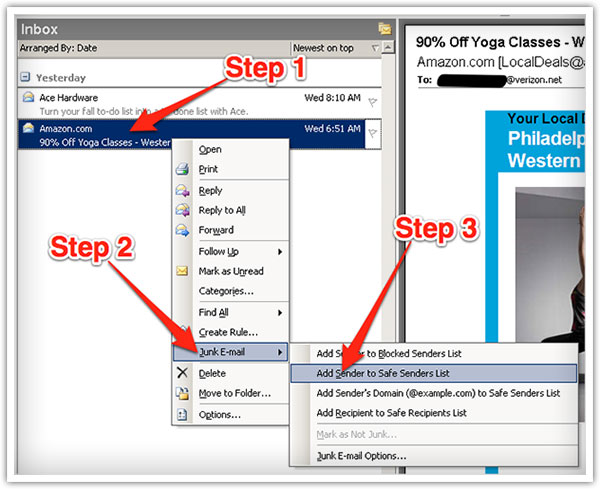
Right-click on the message in your inbox.
Select "Junk E-mail" from the menu.
Click "Add Sender to Safe Senders List."
DONE! Back to top
AppleMail
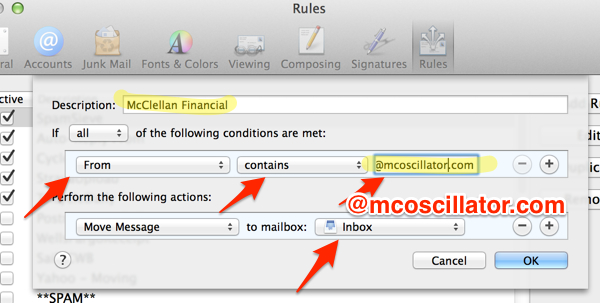
Add a Filter Rule which moves all mail from @mcoscillator.com to InBox"
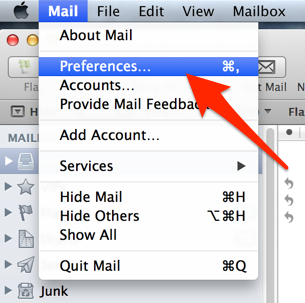
- Open Preferences
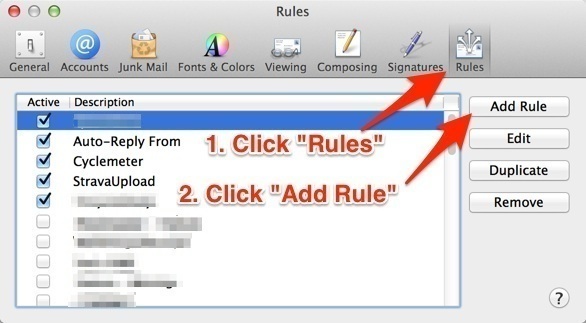
- Click "Rules"
- Click "Add Rule"
- Add a Rule where :
From Contains @mcoscillator.com
Move Message to Inbox
DONE! Back to top
Thunderbird
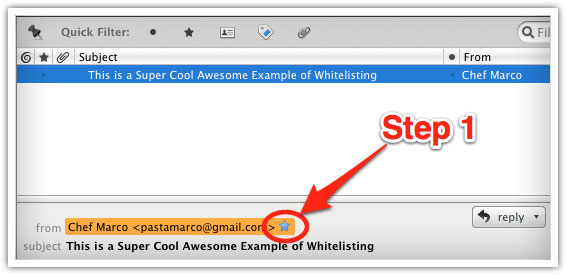
Add Contact to Address Book
- Open the email message.
- Click the blue star next to the sender's name and address to add them to your address book.
DONE! Back to top
Android (Default Client)
On Android devices, open the email message and touch the "picture" of the sender that displays before the message. Touch "Add to Contacts".
DONE! Back to top
iPhone
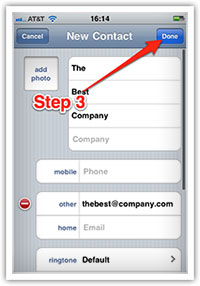
Add Contact to Address Book
- Tap the sender's name in the "From" line.
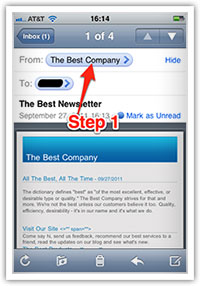
- Tap the sender's name in the "From" line. On the next screen, tap "Create New Contact."
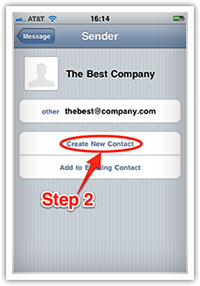
- Company: "McClellan Financial Publications"
--tom@mcoscillator.com
--dailyedition@mcoscillator.com
--marketreport@mcoscillator.com
- Tap "Done" to save the address.
DONE! Back to top